The Linux Terminal
While graphical interfaces are suitable for file management and web browsing, computational fluid dynamics workflows using OpenFOAM rely entirely on the command-line interface, known as the Terminal.
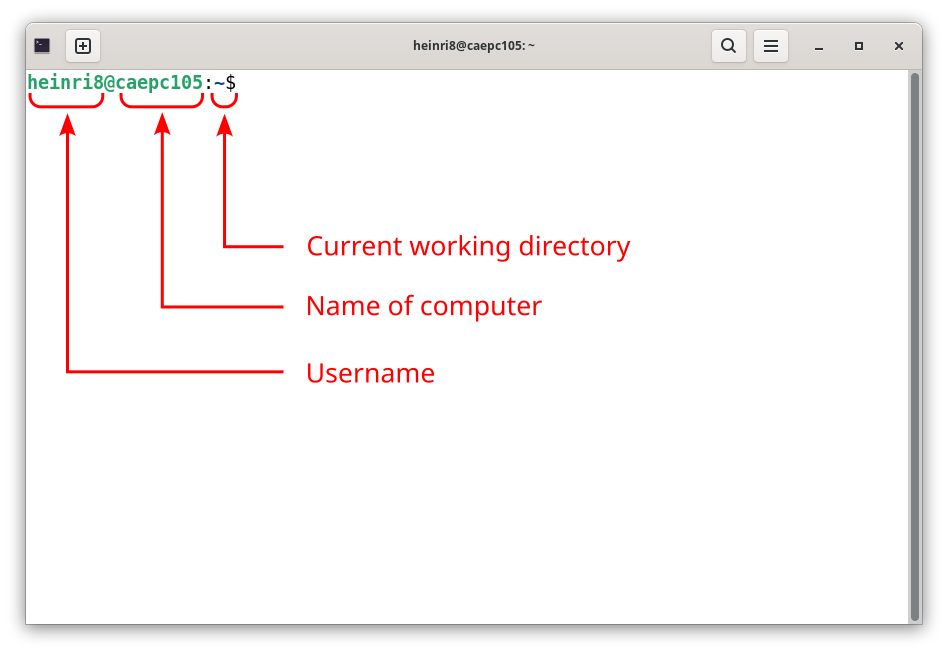
Open the Terminal by pressing the Super key, typing terminal, and pressing Enter. The terminal will open and you will see a prompt similar to this:
Understanding the Command Prompt
When the Terminal opens, a command prompt appears, waiting for input. It typically follows this format: username@computername:~$
username: The current user’s account name.computername: The hostname of the machine.~(tilde): Indicates the current working directory. In Linux, the tilde is a shortcut representing the user’s Home directory (/home/username).$: Indicates that the terminal is ready to accept a standard command.
Command Structure
A typical Linux command consists of up to three parts, separated by spaces:
command [options] [arguments]
commandis the program to be executed.[options]are optional paramters, which modify the behavior of the command, usually preceded by a hyphen (e.g.,-lfor a long, detailed format).argumentsare the target file or directory the command should act upon.
Quality-of-Life Features
Navigating the terminal requires typing, but there are two critical features designed to speed up the workflow and reduce typographical errors:
- Tab Completion: When typing a file or directory name, pressing the
Tabkey will automatically complete the name. If multiple files share the same starting letters, pressingTabtwice will display all possible options. This feature should be used constantly. - Command History: Pressing the
Up ArrowandDown Arrowkeys cycles through previously executed commands. This eliminates the need to retype long commands.
Expanded Command Dictionary
The following commands form the foundation of navigating and manipulating files within a Linux environment.
Navigation & Viewing
| Command | Description | Common Usage & Flags |
|---|---|---|
pwd | Print Working Directory. Displays the absolute path of the current directory. | pwd |
ls | List. Displays the contents of a directory. | ls -l (detailed list), ls -a (shows hidden files). |
cd | Change Directory. Moves the working location. | cd .. (moves up one directory), cd ~ (returns to Home). |
cat | concatenate. Outputs text file contents to the screen. | cat system/controlDict |
clear | Clears the terminal screen of all previous output. | clear |
File & Directory Management
| Command | Description | Common Usage & Flags |
|---|---|---|
mkdir | Make Directory. Creates a new folder. | mkdir new_folder |
cp | Copy. Duplicates a file or directory. | cp file.txt copy.txt. Use cp -r to copy a whole directory. |
mv | Move. Moves a file. It is also used to rename files. | mv old_name.txt new_name.txt |
rm | Remove. Deletes a file. Warning: There is no recycle bin in the terminal. Deletion is permanent. | rm file.txt. Use rm -r to delete a directory. |