The Gnome Desktop
In this tutorial you will familiarize yourself with the Debian 13 operating system with the GNOME desktop environment.
Linux looks and feels different to Windows. In Windows, the operating system and the graphical interface are one tightly integrated package. In Linux, they are separate. Debian handles the underlying system (managing files, hardware, and running OpenFOAM), while GNOME is the graphical user interface of the system, the windows, buttons, and menus used to interact with.
Here is a quick guide to navigating GNOME and where to find everything.
Comparison between Windows and Gnome
| Windows Feature | GNOME Equivalent | How to access it |
|---|---|---|
| Start Menu | Activities Overview | Press the Super key (the Windows key on your keyboard) or click “Activities” in the top left. |
| Taskbar | The Dash (Dock) | Press the Super key. The dock appears at the bottom of the screen. |
| Windows Explorer | Files (Nautilus) | Open the “Files” app from the Dash or App Grid. |
| System Tray (Bottom Right) | Quick Settings (Top Right) | Click the top-right corner of the screen (Wi-Fi, sound, power). |
| Command Prompt / PowerShell | Terminal | Press Super, type “Terminal”, and press Enter. |
Key Features of GNOME
The “Activities” Overview and the Super Key
GNOME is designed around minimizing distractions. When you log in, you will see an empty desktop. There are no desktop icons and no traditional Start button. Everything revolves around the Activities Overview:
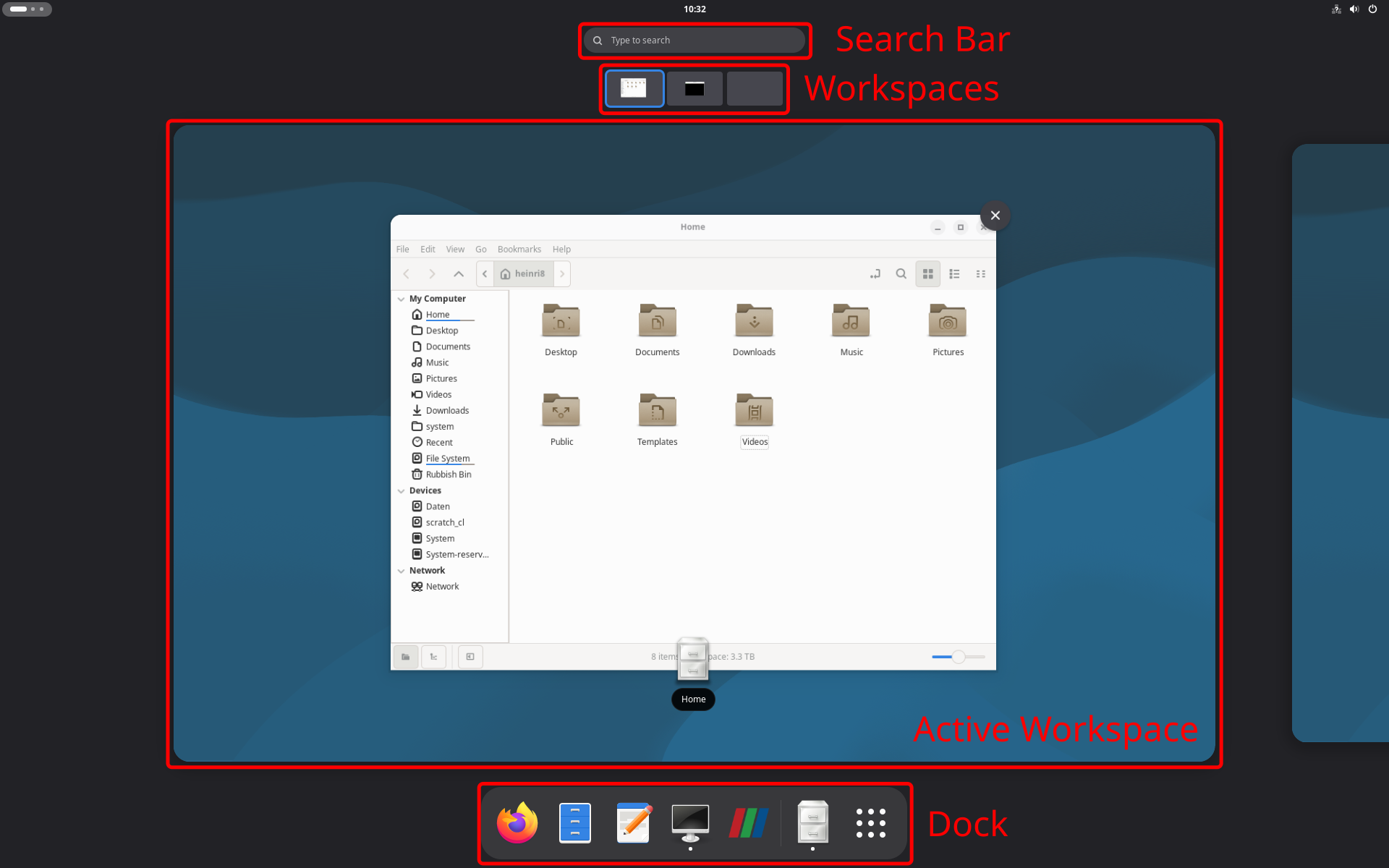
Press the Super key (the key with the Windows logo) or click the top-left corner of the screen to open the Activities overview.
In the Activities overview, the screen zooms out and you will see all your open windows, your workspaces, the search bar at the top, and the Dash (dock) at the bottom.
There are two ways to launch applications:
- Click on the dots icon in the dock at the bottom within the Activities overview and select an application.
- Type the name of an application within the Activities overview. For example, to open the file manager, press
Super, typefiles, and hitEnter. This is the fastest way to work.
You can add and remove apps from the dock via drag-and-drop. Windows can be snapped to take up exactly half the screen. Try this yourself by dragging a window to the left or right edge of the screen.
The File Manager
The GNOME file manager is simply called Files. There are some differences in the file system between Windows and Linux:
- Linux does not use lettered drives. Everything starts at the “root” directory, denoted by a forward slash
/. - Your personal files are stored in your Home directory (
/home/username/or simply~). When you open the Terminal, it automatically starts here. - In Linux, any file or folder that starts with a dot (e.g.,
.bashrc) is hidden. To view hidden files in GNOME, pressCtrl + Hor right-click in the folder and select Show Hidden Files.
Workspaces (Virtual Desktops)
To keep the workflow organized, GNOME uses Workspaces:
- Press the
Superkey and look at the top (or right side) of the screen to see your workspaces. You can drag and drop open windows into different workspaces to keep your Terminal separate from your visualization tools. - Switch between workspaces quickly by pressing
Super + PageUporSuper + PageDown. - For example, you might have one window for your Terminal (running the simulation), one for ParaView (visualizing the results), and a web browser open to this tutorial.
Quick Settings
The Quick Settings menu provides access to volume, network connectivity, power management, and user session options (such as logging out or shutting down). To open this menu, click the status icons located in the top-right corner of the screen.